/Template Info
(007)
Last updated: Mon 9, 2025
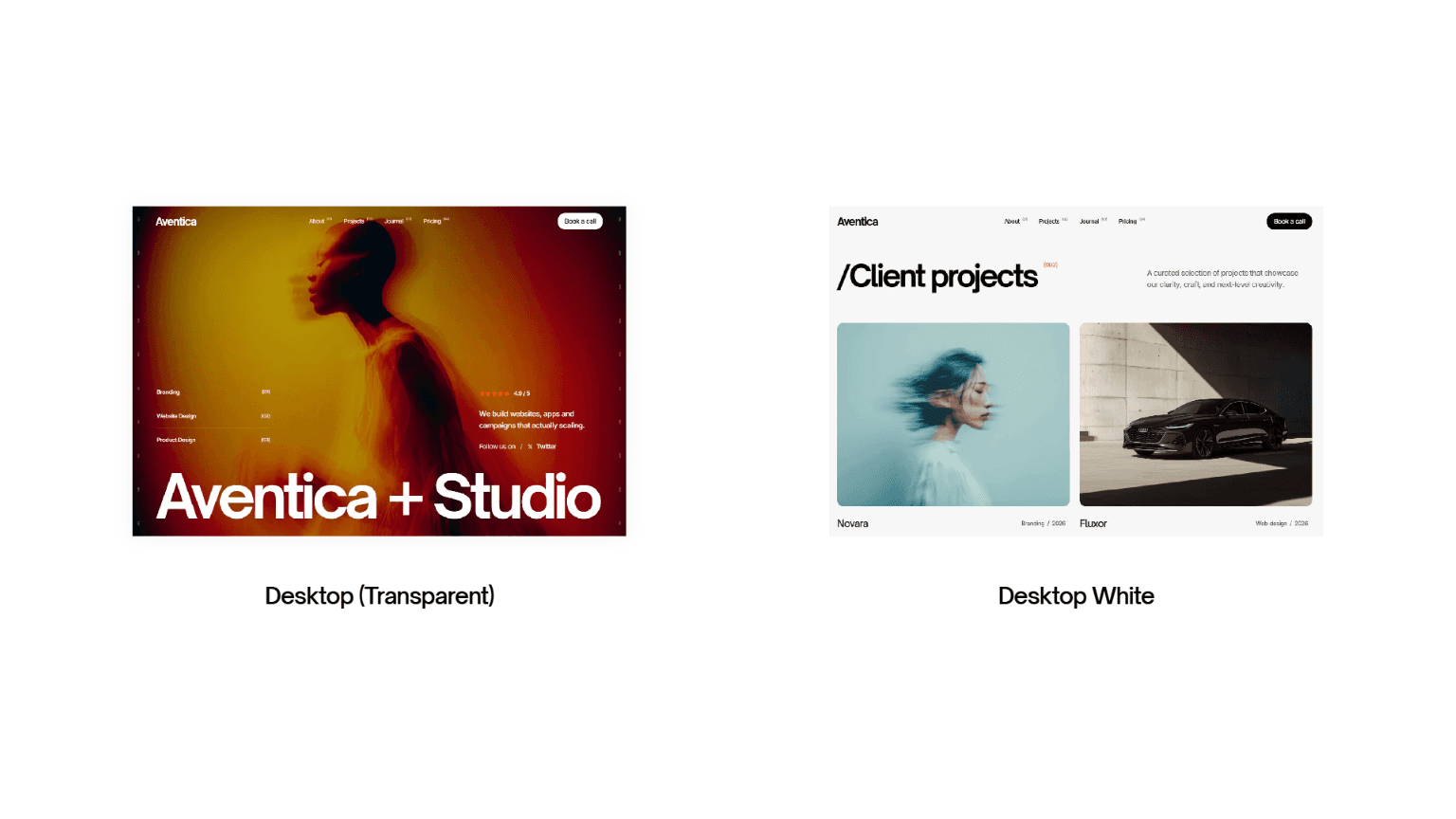
Navigation (Desktop)
Options:
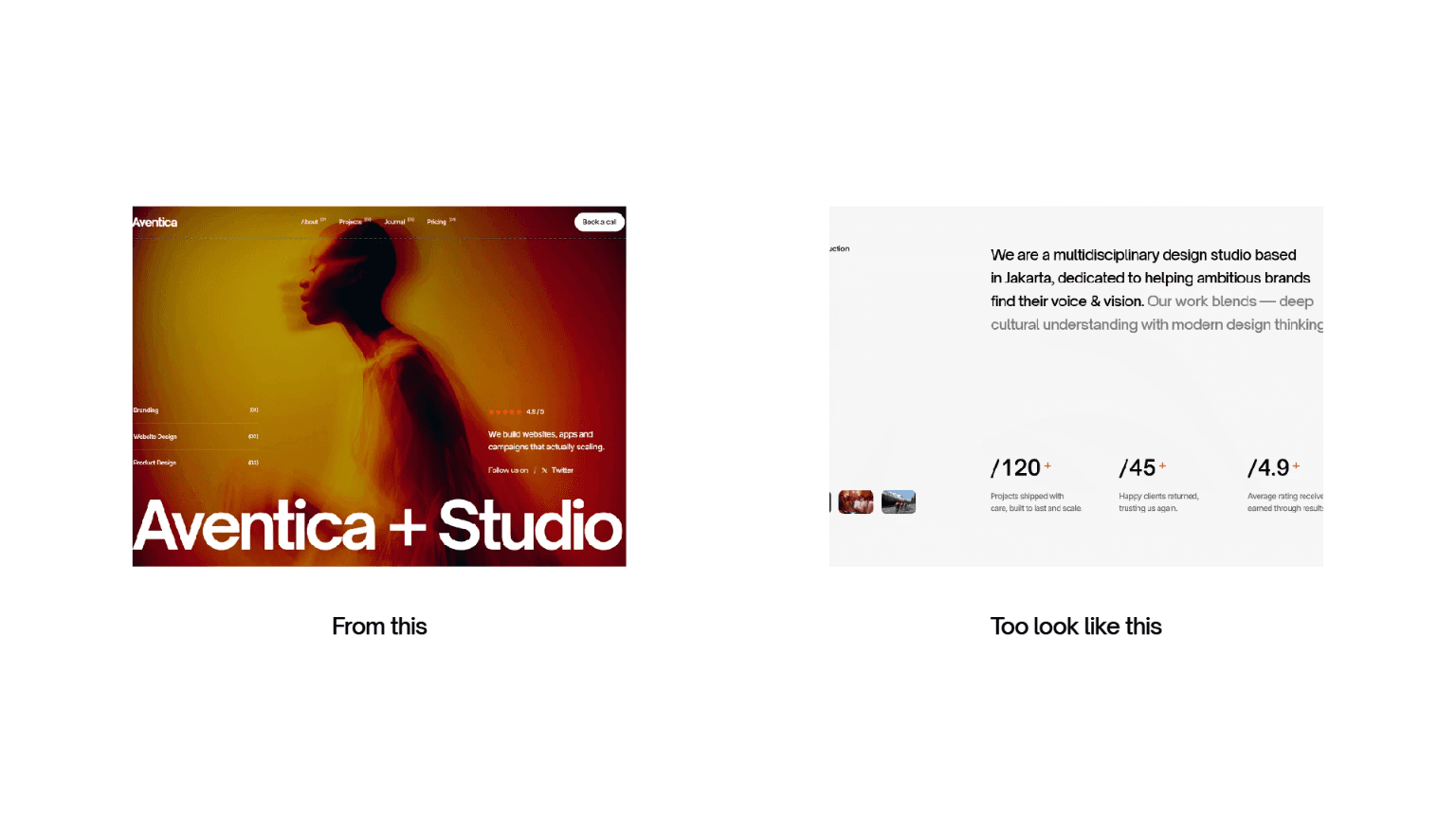
Desktop (Transparent)→ Use when the hero has a background image or video.
Desktop (White)→ Use when the hero starts with a plain/light background.
Behaviour:
Transparent variant animates into a solid background once you scroll past the hero.
White variant stays fixed from the start.
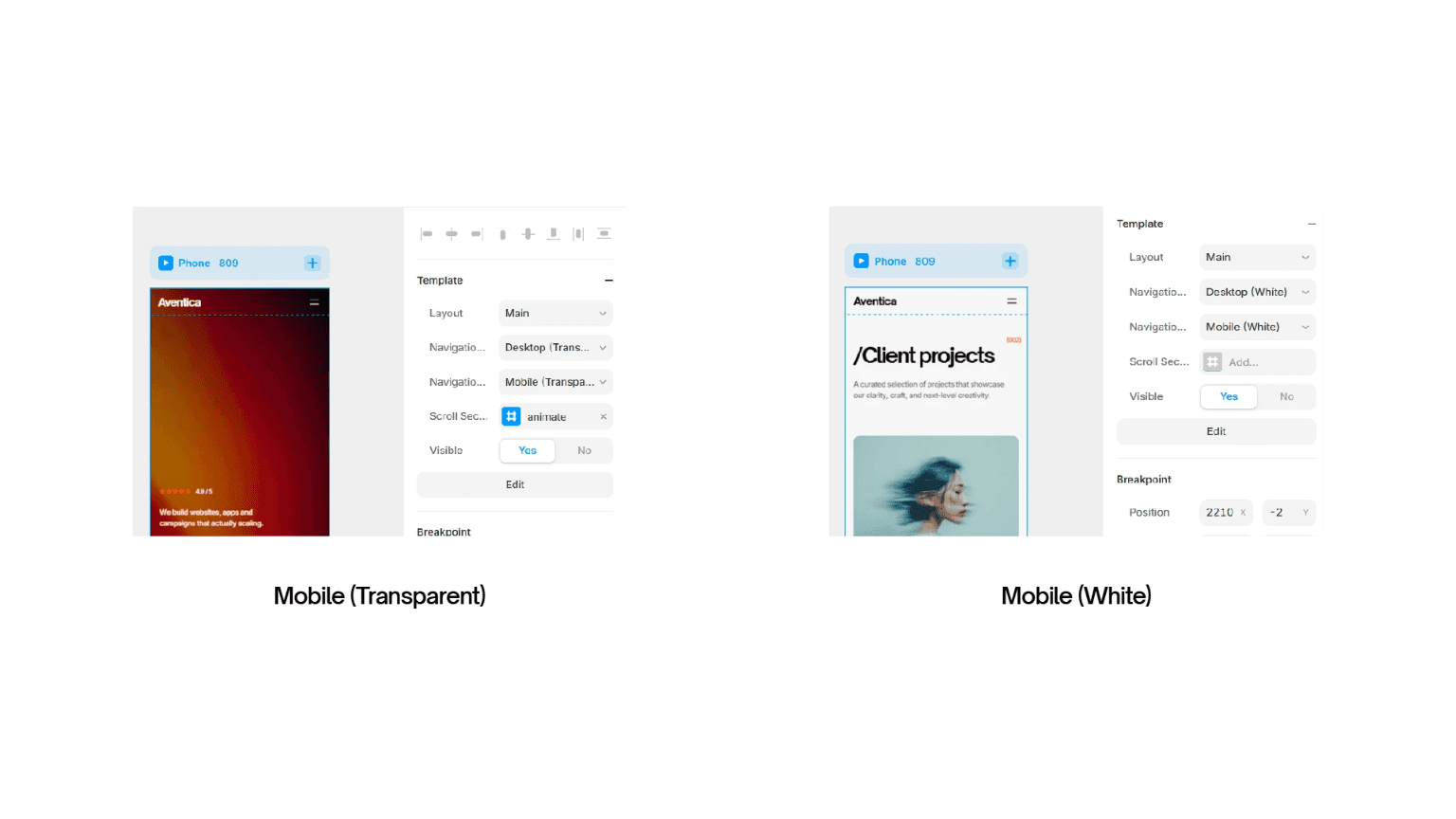
Navigation (Mobile)
Options:
Mobile (Transparent)→ Must be used if desktop navigation is transparent.Mobile (White)→ Must be used if desktop navigation is white.
Consistency Rule: Mobile and desktop navigation must always match the hero type for that page.
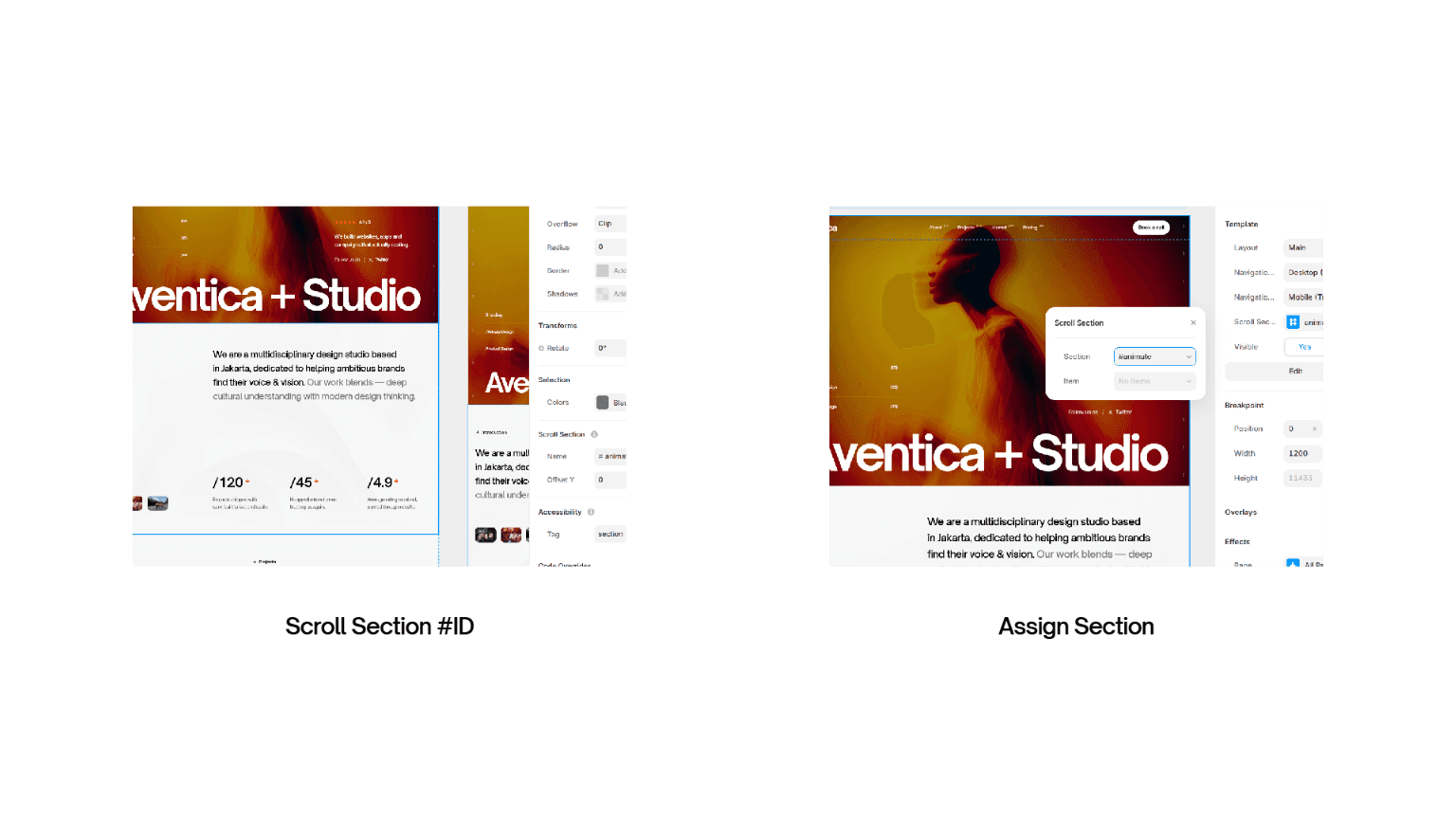
Scroll section
Purpose: Defines the point where the navigation changes from transparent to solid background.
How to use:
If the navbar is transparent, select the section immediately after the hero (usually the first content section).
If the navbar is white, you don’t need to set this property (leave it empty).
Controls:
Name: Select the section ID (e.g.,#animate).
Usage Guide
Hero with Background Image/Video → Use Transparent Navbar (desktop + mobile). Then set the Scroll Section to the next section so the navbar animates on scroll.
Hero with Solid Background (e.g., white) → Use White Navbar (desktop + mobile). No scroll section needed.
Submit form
After finalizing everything on your site, go to the form settings, add the "Send to" field, and enter your Gmail address :)
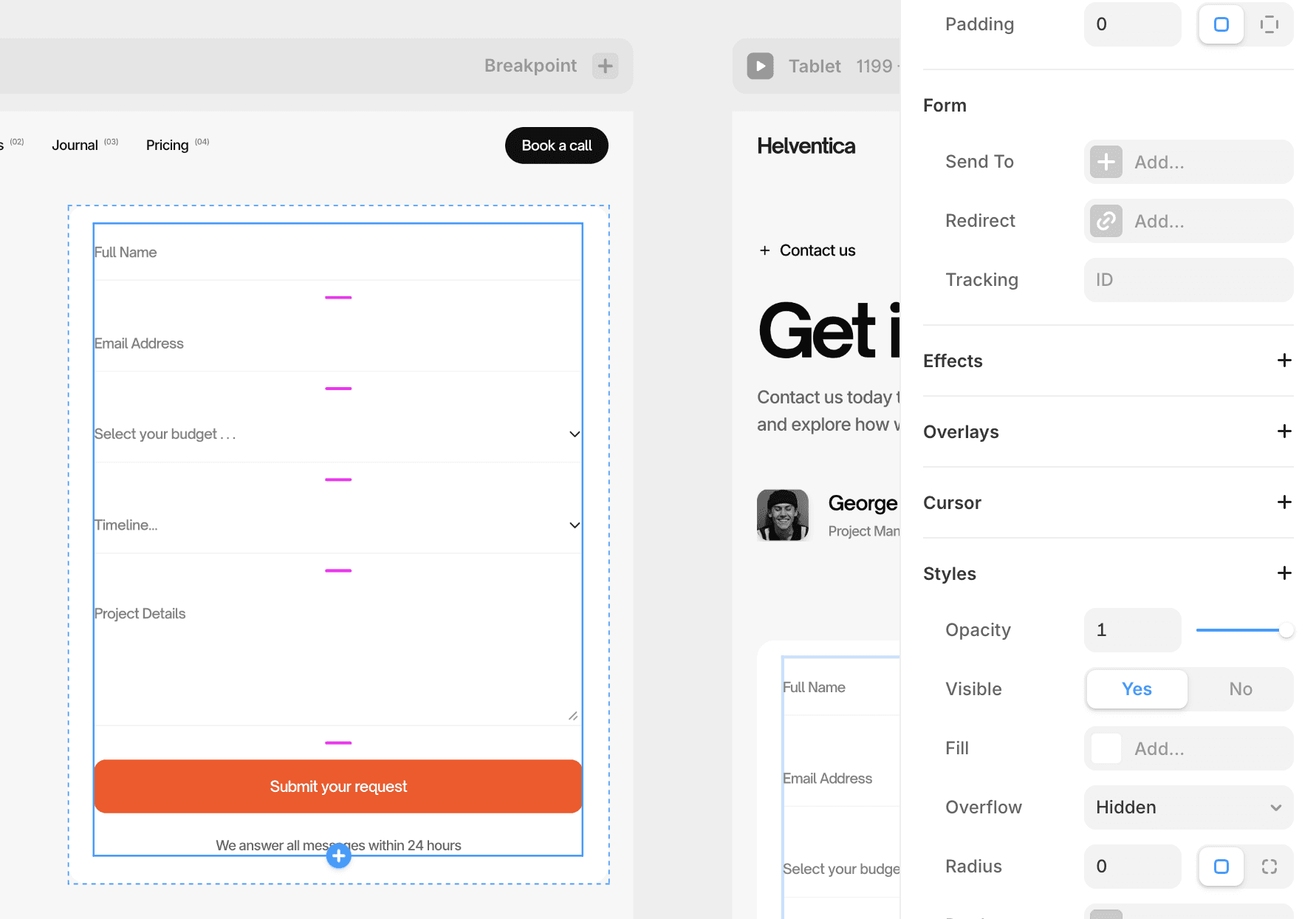
Image and Content Disclaimer
Images
Some images shown (like in service previews or placeholder sections) are not owned by us. They belong to their respective authors and are only used here as examples to help you understand how to structure your content.
All project showcase images are created by us in MidJourney and are part of the template design. These can be replaced with your own project visuals.
Text Content:
The default text included in this template is not tied to the images and is provided only as a guide.
Replace placeholder text with your own brand copy in the CMS.